
Gum
A tool for glamorous shell scripts 🎀
#Gum




A tool for glamorous shell scripts. Leverage the power of Bubbles and Lip Gloss in your scripts and aliases without writing any Go code!
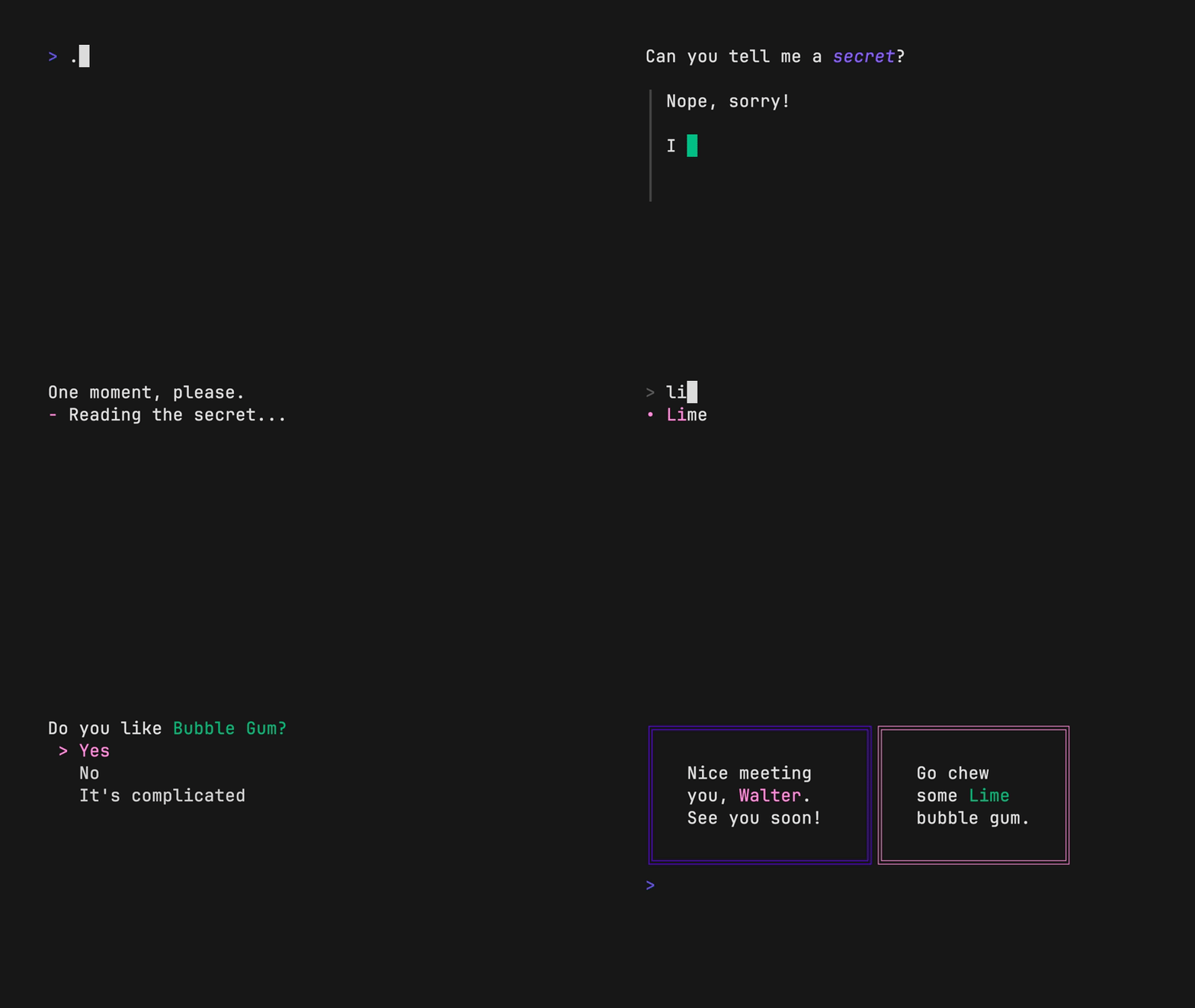
The above example is running from a single shell script (source).
#Tutorial
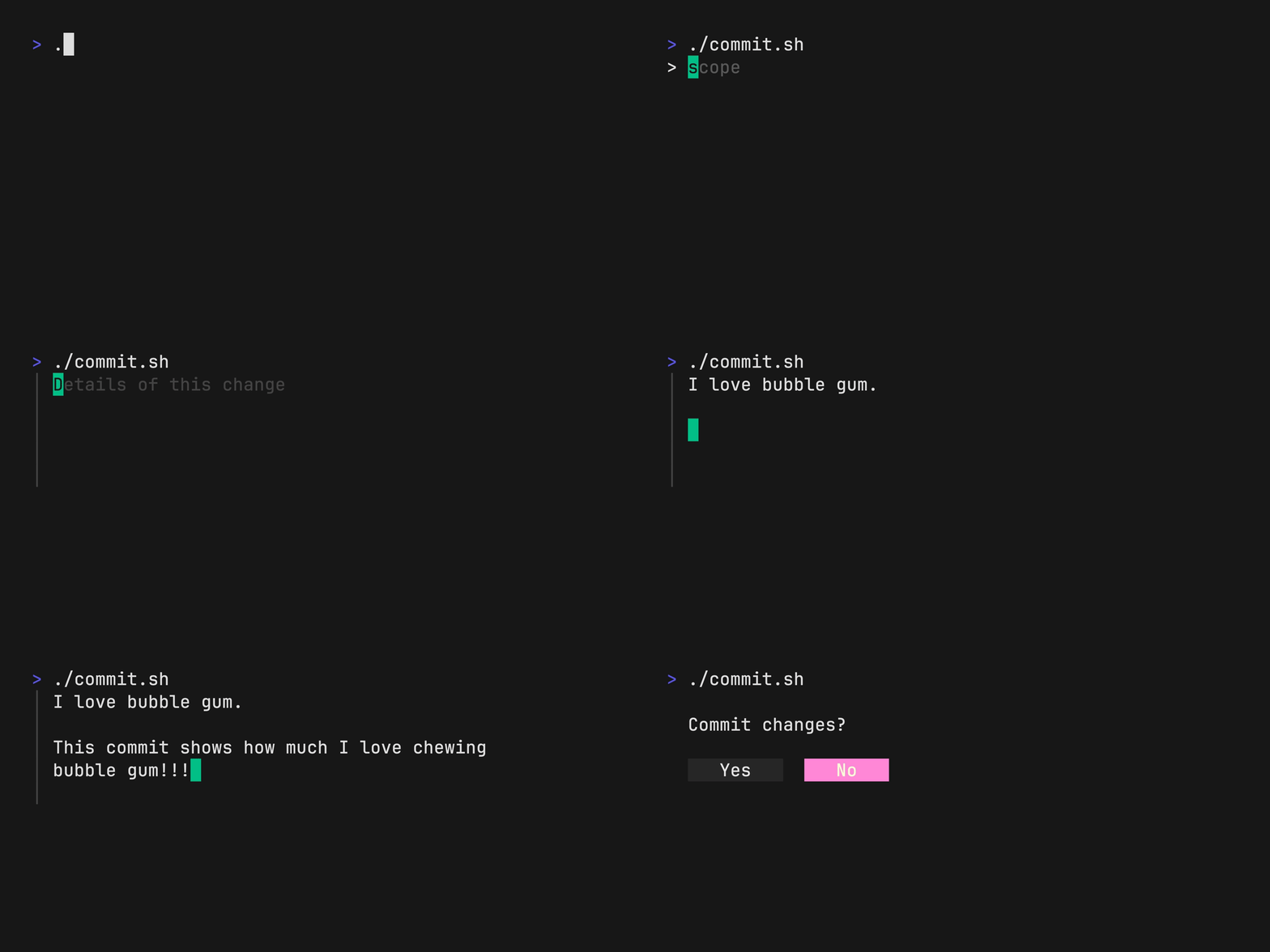
Gum provides highly configurable, ready-to-use utilities to help you write useful shell scripts and dotfile aliases with just a few lines of code. Let's build a simple script to help you write Conventional Commits for your dotfiles.
Ask for the commit type with gum choose:
gum choose "fix" "feat" "docs" "style" "refactor" "test" "chore" "revert"
[!NOTE] This command itself will print to stdout which is not all that useful. To make use of the command later on you can save the stdout to a
$VARIABLEorfile.txt.
Prompt for the scope of these changes:
gum input --placeholder "scope"
Prompt for the summary and description of changes:
gum input --value "$TYPE$SCOPE: " --placeholder "Summary of this change"
gum write --placeholder "Details of this change"
Confirm before committing:
gum confirm "Commit changes?" && git commit -m "$SUMMARY" -m "$DESCRIPTION"
Check out the complete example for combining these commands in a single script.
#Installation
Use a package manager:
# macOS or Linux
brew install gum

# Arch Linux (btw)
pacman -S gum

# Fedora or EPEL 10
dnf install gum

# Nix
nix-env -iA nixpkgs.gum

# Flox
flox install gum

# Windows (via WinGet or Scoop)
winget install charmbracelet.gum
scoop install charm-gum
Debian/Ubuntu
sudo mkdir -p /etc/apt/keyrings
curl -fsSL https://repo.charm.sh/apt/gpg.key | sudo gpg --dearmor -o /etc/apt/keyrings/charm.gpg
echo "deb [signed-by=/etc/apt/keyrings/charm.gpg] https://repo.charm.sh/apt/ * *" | sudo tee /etc/apt/sources.list.d/charm.list
sudo apt update && sudo apt install gum
Fedora/RHEL/OpenSuse
echo '[charm]
name=Charm
baseurl=https://repo.charm.sh/yum/
enabled=1
gpgcheck=1
gpgkey=https://repo.charm.sh/yum/gpg.key' | sudo tee /etc/yum.repos.d/charm.repo
sudo rpm --import https://repo.charm.sh/yum/gpg.key

# yum
sudo yum install gum

# zypper
sudo zypper refresh
sudo zypper install gum
FreeBSD
# packages
sudo pkg install gum

# ports
cd /usr/ports/devel/gum && sudo make install clean
Or download it:
- Packages are available in Debian, RPM, and Alpine formats
- Binaries are available for Linux, macOS, Windows, FreeBSD, OpenBSD, and NetBSD
Or just install it with go:
go install charm.land/gum/v2@latest
#Commands
choose: Choose an option from a list of choicesconfirm: Ask a user to confirm an actionfile: Pick a file from a folderfilter: Filter items from a listformat: Format a string using a templateinput: Prompt for some inputjoin: Join text vertically or horizontallypager: Scroll through a filespin: Display spinner while running a commandstyle: Apply coloring, borders, spacing to texttable: Render a table of datawrite: Prompt for long-form textlog: Log messages to output
#Customization
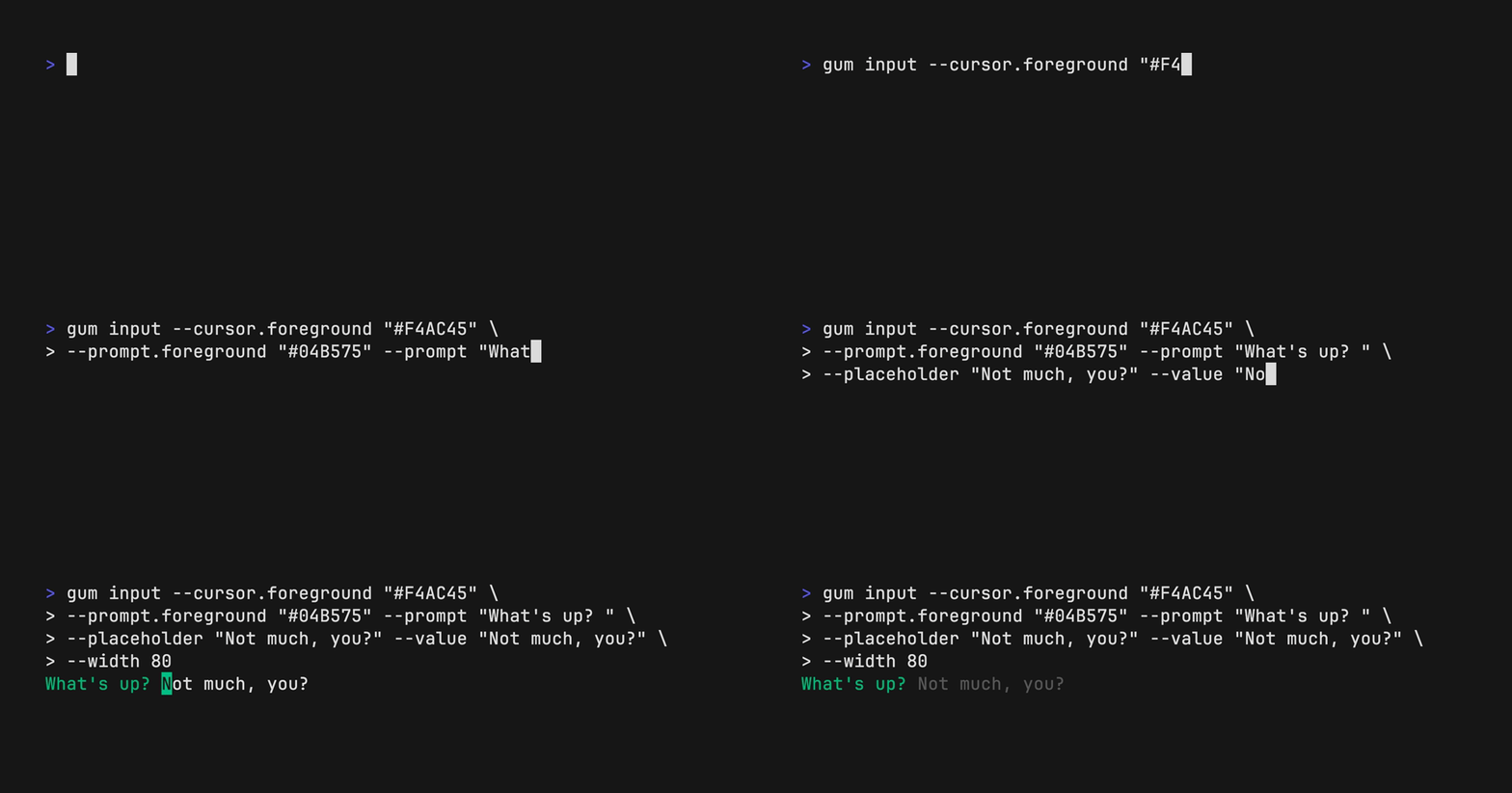
You can customize gum options and styles with --flags and $ENVIRONMENT_VARIABLES.
See gum <command> --help for a full view of each command's customization and configuration options.
Customize with --flags:
gum input --cursor.foreground "#FF0" \
          --prompt.foreground "#0FF" \
          --placeholder "What's up?" \
          --prompt "* " \
          --width 80 \
          --value "Not much, hby?"
Customize with ENVIRONMENT_VARIABLES:
export GUM_INPUT_CURSOR_FOREGROUND="#FF0"
export GUM_INPUT_PROMPT_FOREGROUND="#0FF"
export GUM_INPUT_PLACEHOLDER="What's up?"
export GUM_INPUT_PROMPT="* "
export GUM_INPUT_WIDTH=80

# --flags can override values set with environment
gum input
#Input
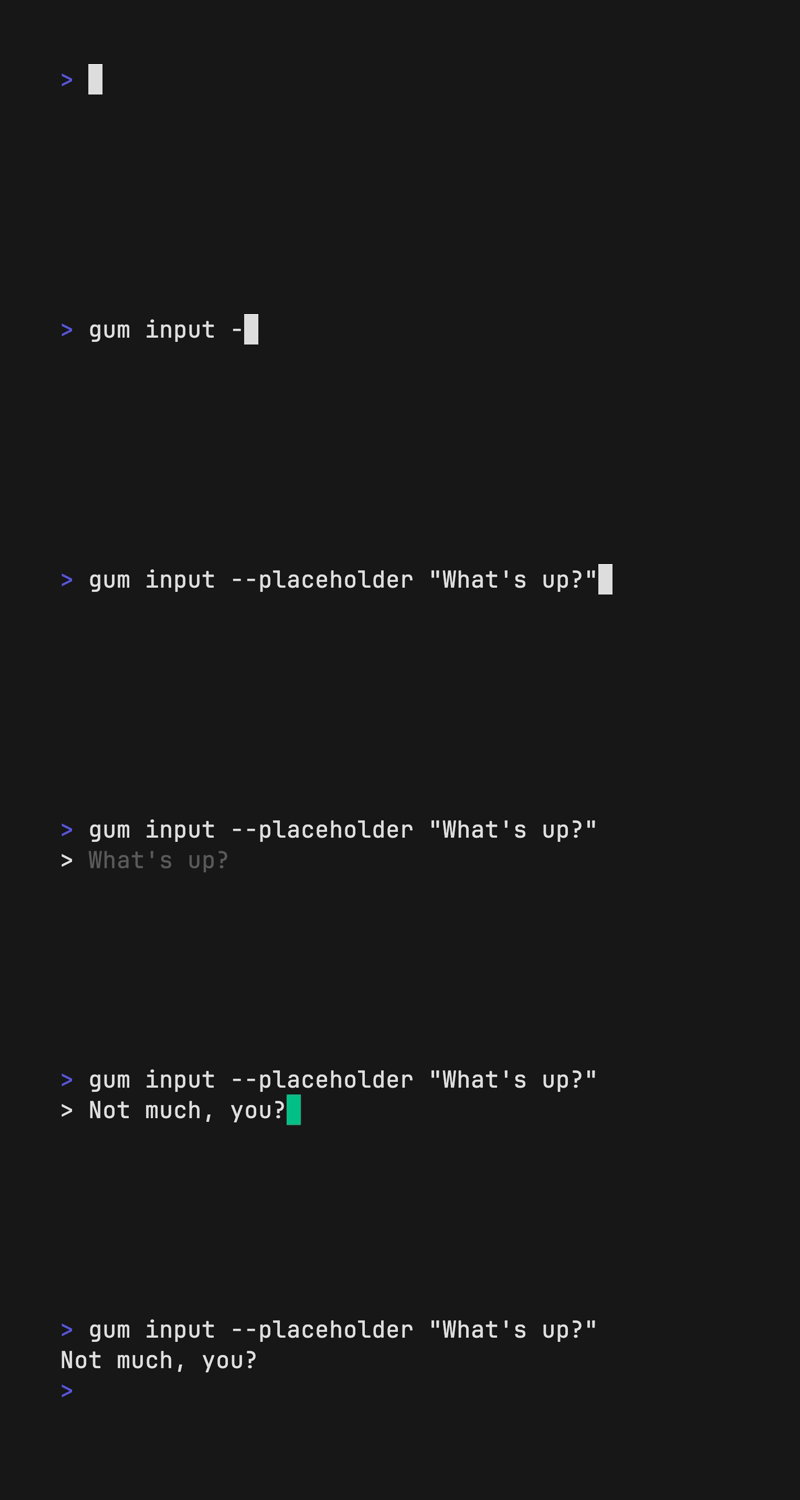
Prompt for input with a simple command.
gum input > answer.txt
gum input --password > password.txt
#Write
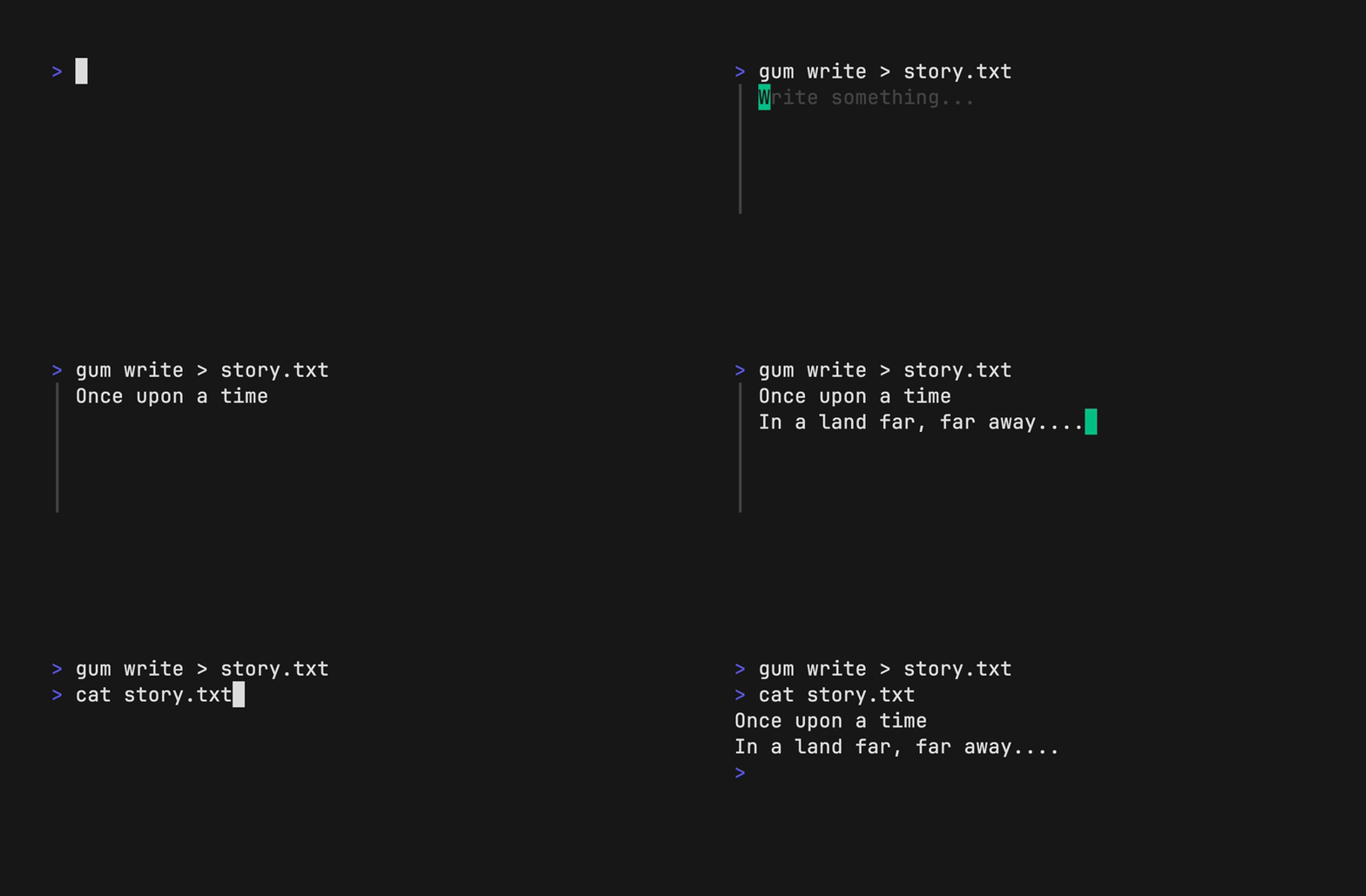
Prompt for some multi-line text (ctrl+d to complete text entry).
gum write > story.txt
#Filter
Filter a list of values with fuzzy matching:
echo Strawberry >> flavors.txt
echo Banana >> flavors.txt
echo Cherry >> flavors.txt
gum filter < flavors.txt > selection.txt
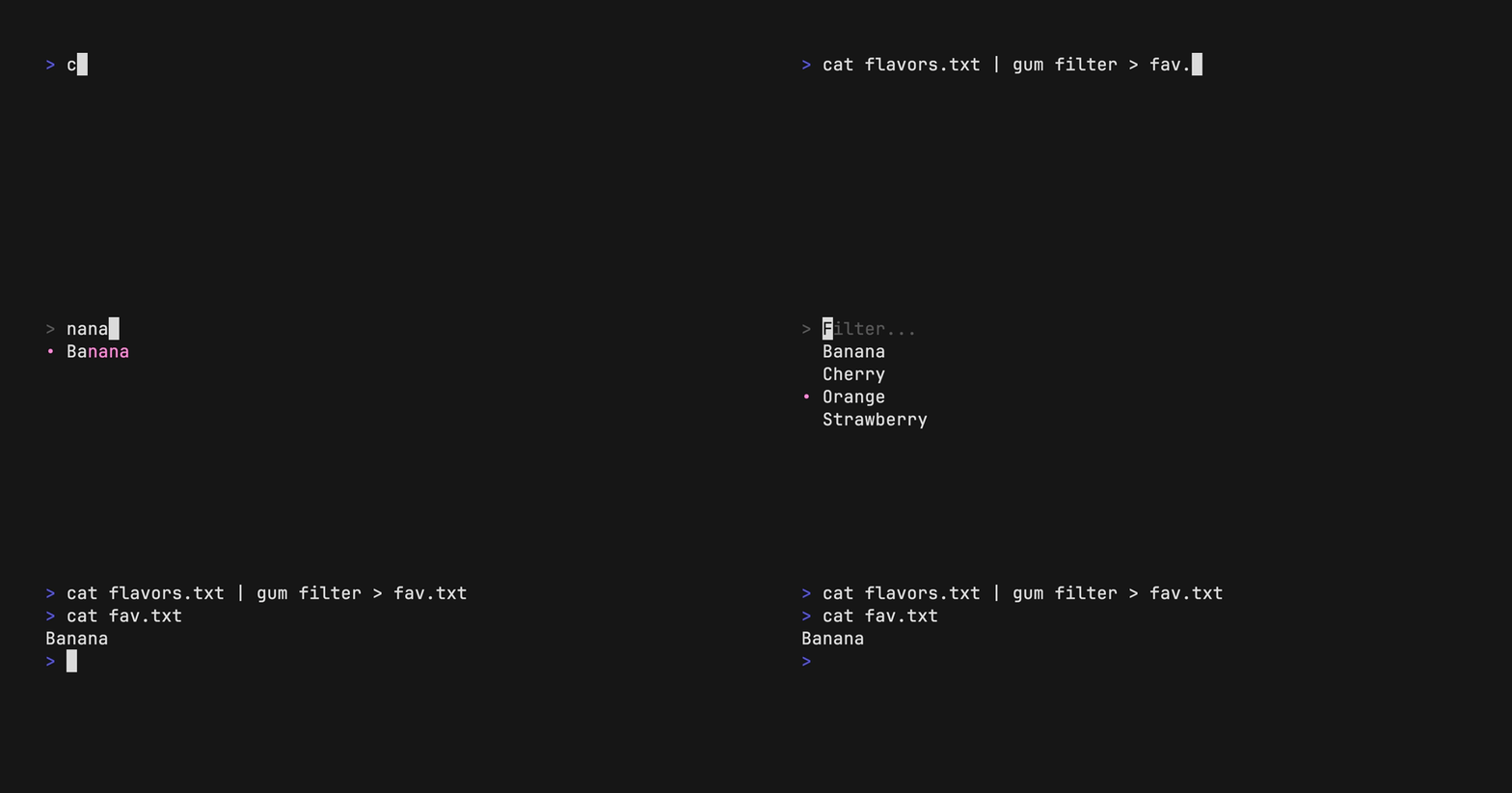
Select multiple options with the --limit flag or --no-limit flag. Use tab or ctrl+space to select, enter to confirm.
cat flavors.txt | gum filter --limit 2
cat flavors.txt | gum filter --no-limit
#Choose
Choose an option from a list of choices.
echo "Pick a card, any card..."
CARD=$(gum choose --height 15 {{A,K,Q,J},{10..2}}" "{♠,♥,♣,♦})
echo "Was your card the $CARD?"
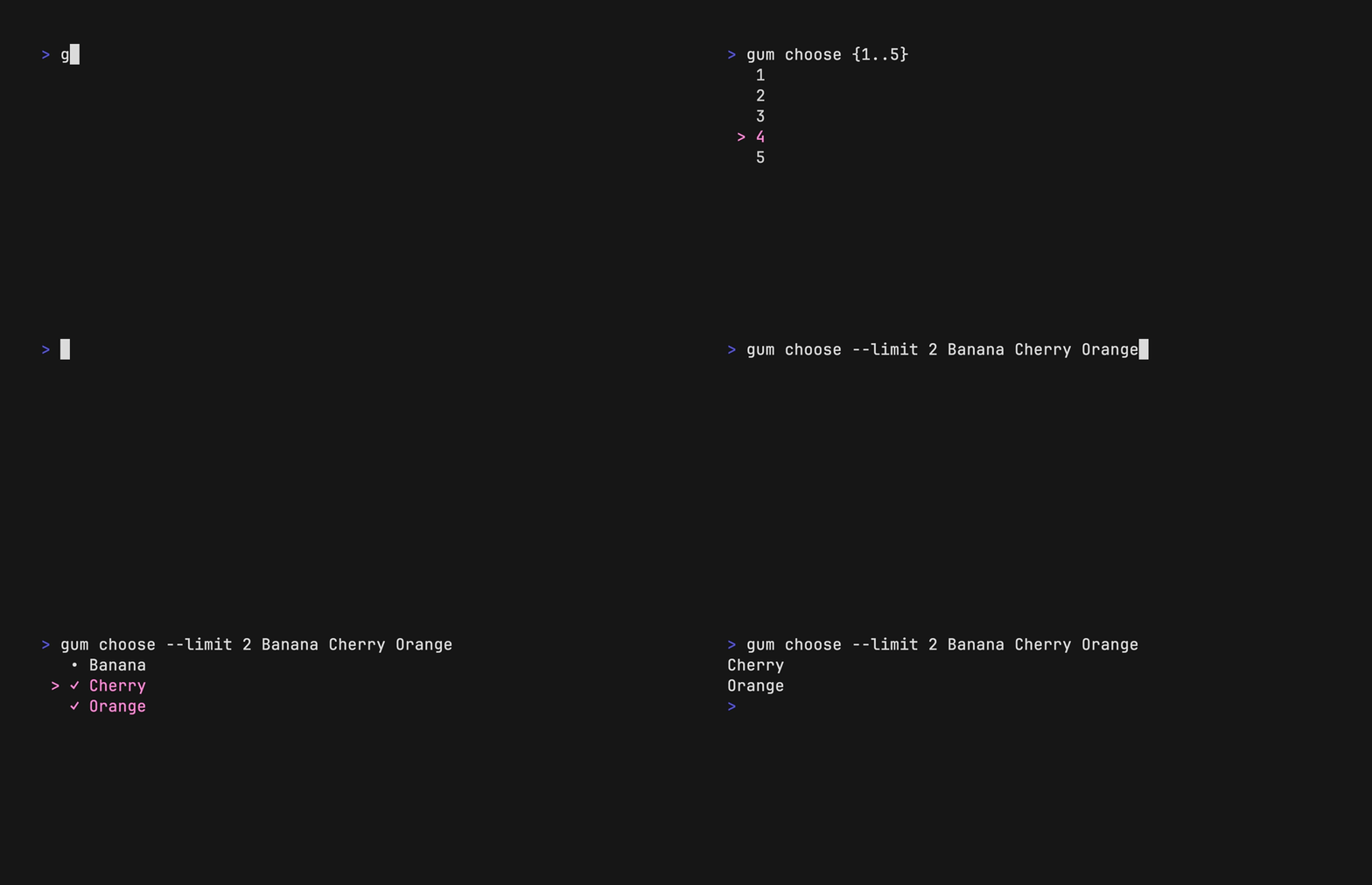
You can also select multiple items with the --limit or --no-limit flag, which determines
the maximum of items that can be chosen.
cat songs.txt | gum choose --limit 5
cat foods.txt | gum choose --no-limit --header "Grocery Shopping"
#Confirm
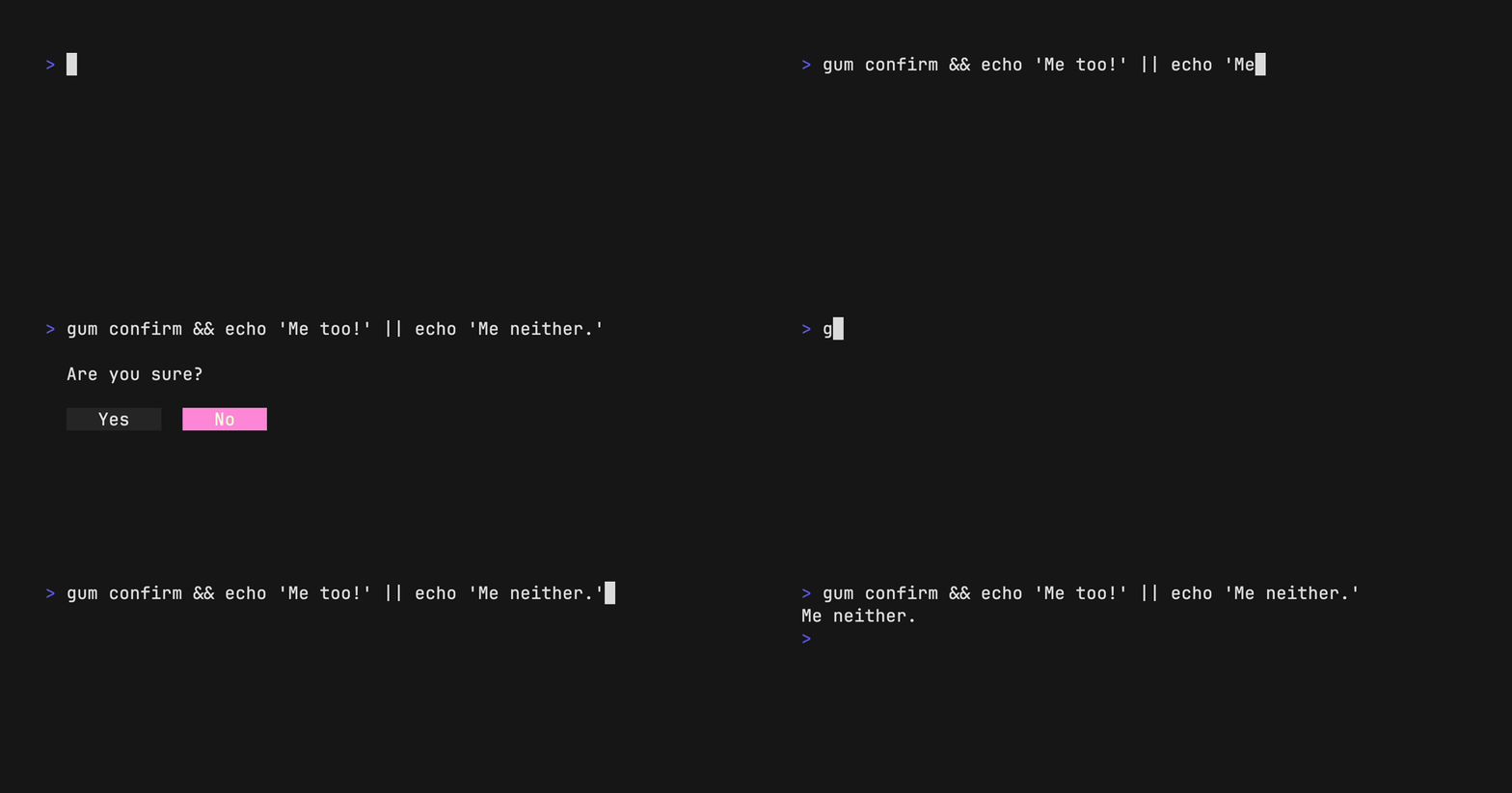
Confirm whether to perform an action. Exits with code 0 (affirmative) or 1
(negative) depending on selection.
gum confirm && rm file.txt || echo "File not removed"
#File
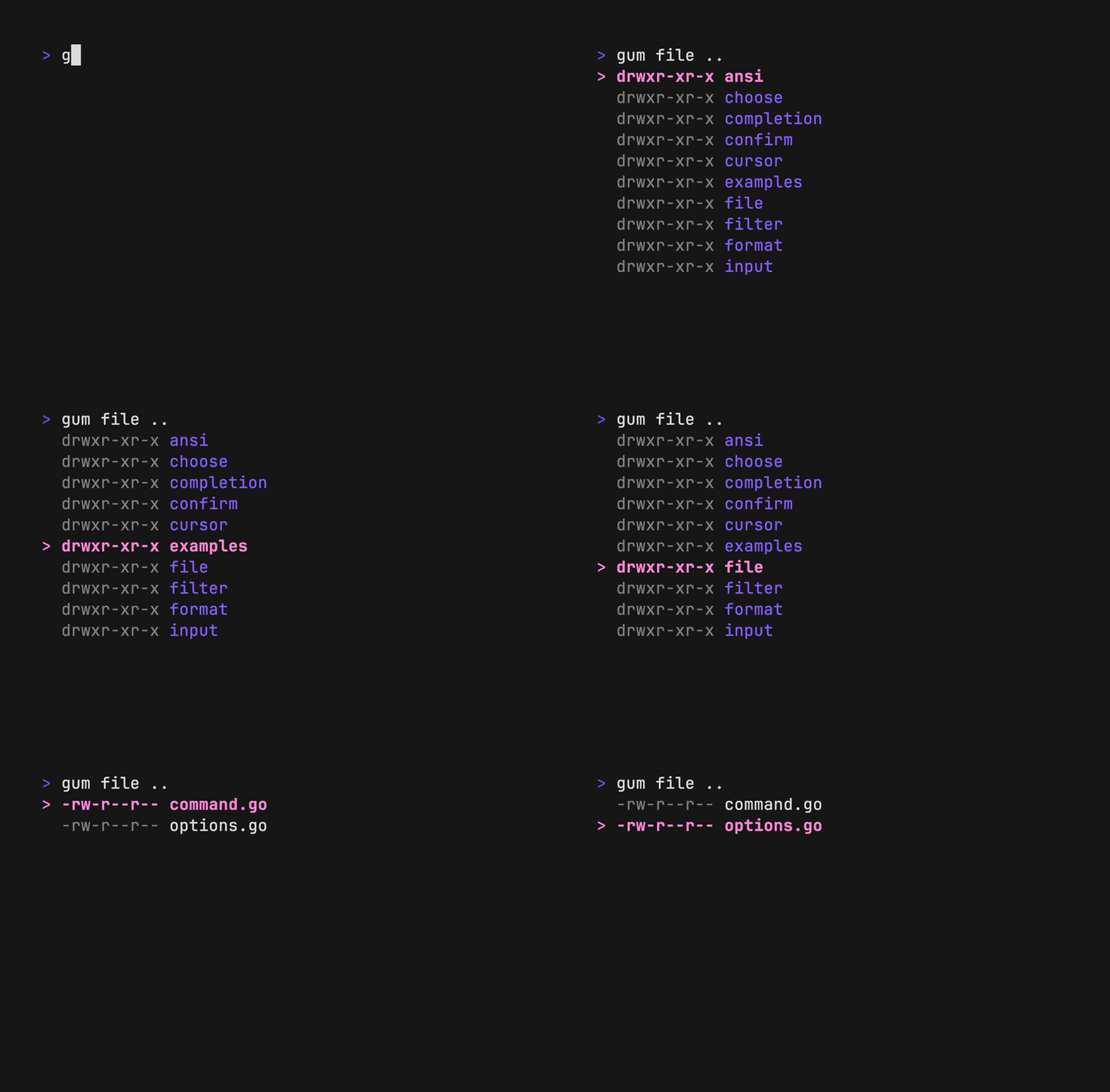
Prompt the user to select a file from the file tree.
$EDITOR $(gum file $HOME)
#Pager
Scroll through a long document with line numbers and a fully customizable viewport.
gum pager < README.md

#Spin
Display a spinner while running a script or command. The spinner will automatically stop after the given command exits.
To view or pipe the command's output, use the --show-output flag.
gum spin --spinner dot --title "Buying Bubble Gum..." -- sleep 5
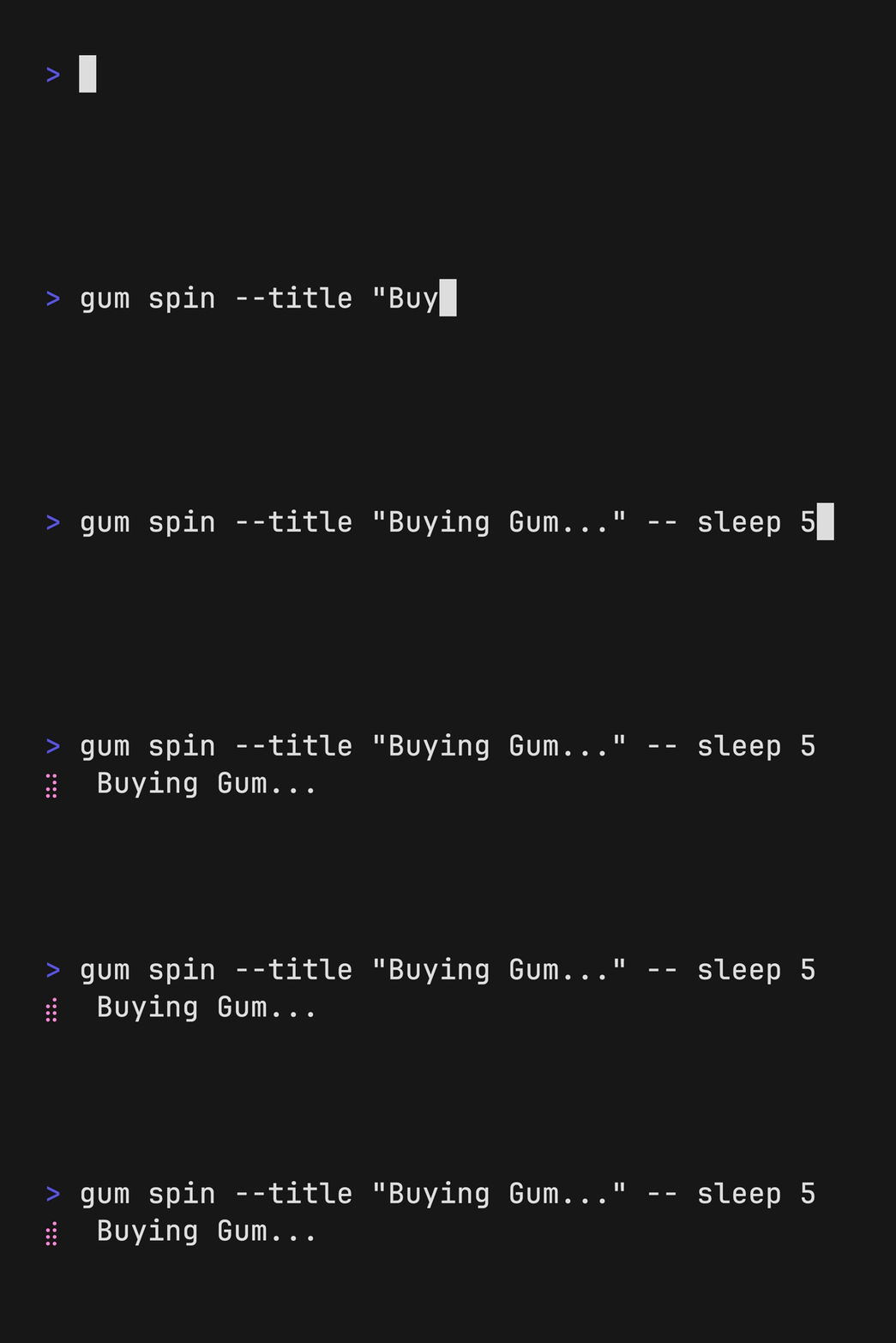
Available spinner types include: line, dot, minidot, jump, pulse, points, globe, moon, monkey, meter, hamburger.
#Table
Select a row from some tabular data.
gum table < flavors.csv | cut -d ',' -f 1
#Style
Pretty print any string with any layout with one command.
gum style \
	--foreground 212 --border-foreground 212 --border double \
	--align center --width 50 --margin "1 2" --padding "2 4" \
	'Bubble Gum (1¢)' 'So sweet and so fresh!'
#Join
Combine text vertically or horizontally. Use this command with gum style to
build layouts and pretty output.
Tip: Always wrap the output of gum style in quotes to preserve newlines
(\n) when using it as an argument in the join command.
I=$(gum style --padding "1 5" --border double --border-foreground 212 "I")
LOVE=$(gum style --padding "1 4" --border double --border-foreground 57 "LOVE")
BUBBLE=$(gum style --padding "1 8" --border double --border-foreground 255 "Bubble")
GUM=$(gum style --padding "1 5" --border double --border-foreground 240 "Gum")

I_LOVE=$(gum join "$I" "$LOVE")
BUBBLE_GUM=$(gum join "$BUBBLE" "$GUM")
gum join --align center --vertical "$I_LOVE" "$BUBBLE_GUM"
#Format
format processes and formats bodies of text. gum format can parse markdown,
template strings, and named emojis.
# Format some markdown
gum format -- "# Gum Formats" "- Markdown" "- Code" "- Template" "- Emoji"
echo "# Gum Formats\n- Markdown\n- Code\n- Template\n- Emoji" | gum format

# Syntax highlight some code
cat main.go | gum format -t code

# Render text any way you want with templates
echo '{{ Bold "Tasty" }} {{ Italic "Bubble" }} {{ Color "99" "0" " Gum " }}' \
    | gum format -t template

# Display your favorite emojis!
echo 'I :heart: Bubble Gum :candy:' | gum format -t emoji
For more information on template helpers, see the Termenv docs. For a full list of named emojis see the GitHub API.
#Log
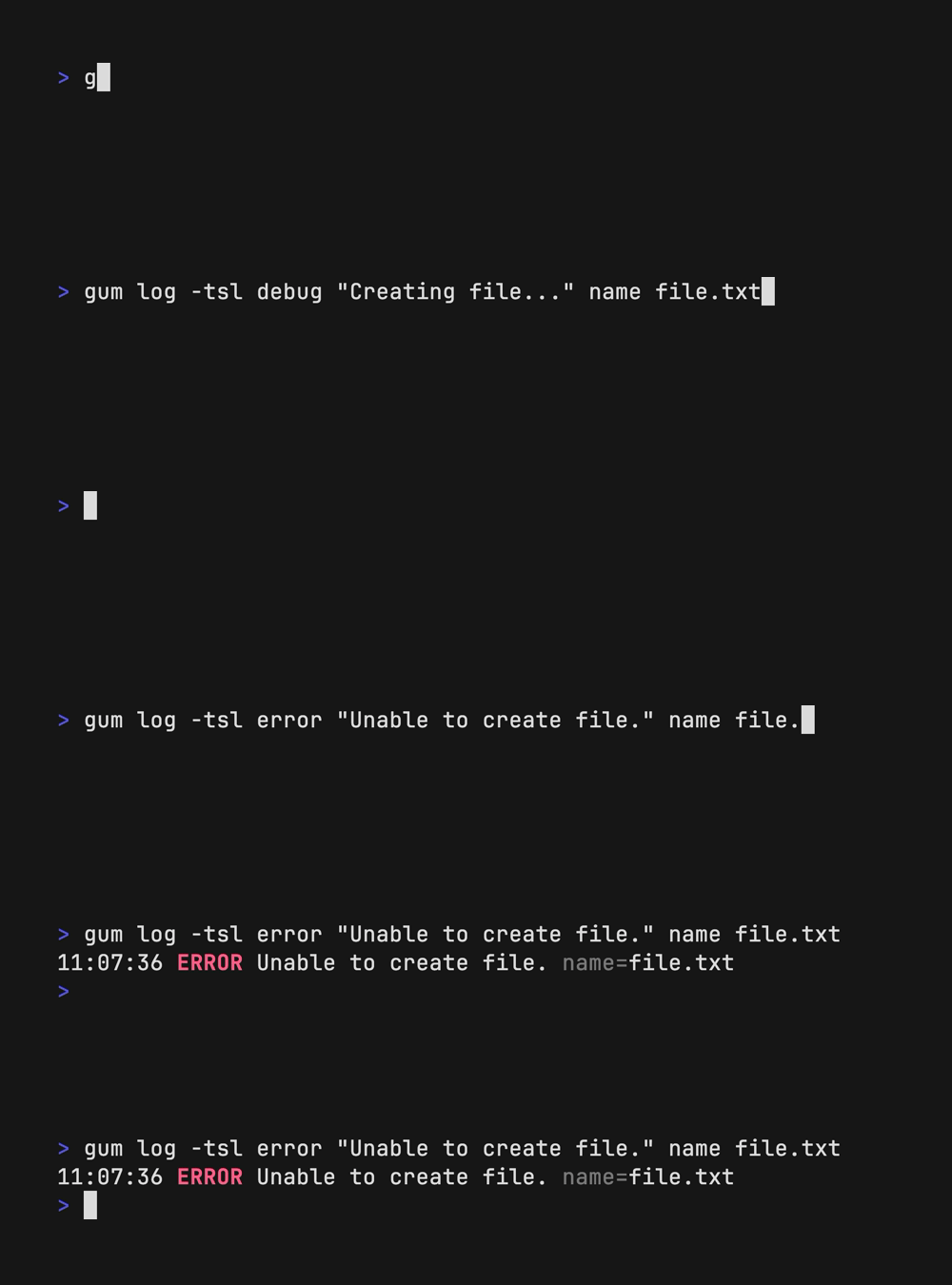
log logs messages to the terminal using different levels and styling using
the charmbracelet/log library.
# Log some debug information.
gum log --structured --level debug "Creating file..." name file.txt
# DEBUG Creating file... name=file.txt

# Log some error.
gum log --structured --level error "Unable to create file." name file.txt
# ERROR Unable to create file. name=temp.txt

# Include a timestamp.
gum log --time rfc822 --level error "Unable to create file."
See the Go time package for acceptable --time formats.
See charmbracelet/log for more usage.
#Examples
How to use gum in your daily workflows:
See the examples directory for more real world use cases.
- Write a commit message:
git commit -m "$(gum input --width 50 --placeholder "Summary of changes")" \
           -m "$(gum write --width 80 --placeholder "Details of changes")"
- Open files in your
$EDITOR
$EDITOR $(gum filter)
- Connect to a
tmuxsession
SESSION=$(tmux list-sessions -F \#S | gum filter --placeholder "Pick session...")
tmux switch-client -t "$SESSION" || tmux attach -t "$SESSION"
- Pick a commit hash from
githistory
git log --oneline | gum filter | cut -d' ' -f1 # | copy
- Simple
skatepassword selector.
skate list -k | gum filter | xargs skate get
- Uninstall packages
brew list | gum choose --no-limit | xargs brew uninstall
- Clean up
gitbranches
git branch | cut -c 3- | gum choose --no-limit | xargs git branch -D
- Checkout GitHub pull requests with
gh
gh pr list | cut -f1,2 | gum choose | cut -f1 | xargs gh pr checkout
- Copy command from shell history
gum filter < $HISTFILE --height 20
sudoreplacement
alias please="gum input --password | sudo -nS"
#Contributing
See contributing.
#Feedback
We’d love to hear your thoughts on this project. Feel free to drop us a note!
#License
Part of Charm.

Charm热爱开源 • Charm loves open source